
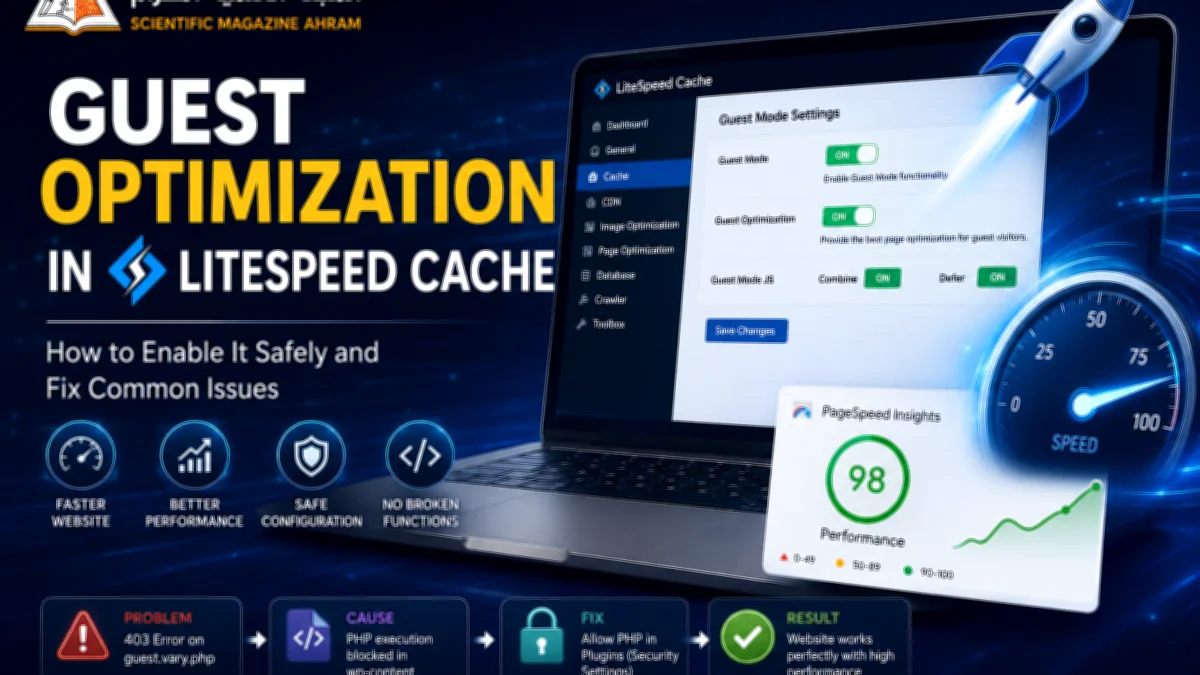
Guest Optimization in LiteSpeed Cache: How to Enable It Safely and Fix Common Issues
Guest Optimization is one of the most powerful features in LiteSpeed Cache for improving WordPress performance. It can significantly increase Google PageSpeed scores by delivering a highly optimized version of the website to visitors who are not logged in.
However, a higher PageSpeed score does not always mean that every website function is working correctly. Sliders, news tickers, menus, and JavaScript features must also be tested as a real visitor.
1. Enable Guest Mode and Guest Optimization
Before enabling Guest Optimization, make sure Guest Mode is enabled.
Go to:
LiteSpeed Cache → Cache → Guest ModeEnable:
- Guest Mode
- Guest Optimization
Save the settings and clear the LiteSpeed cache.
2. Always Test the Website as a Guest
This is one of the most important steps.
After enabling Guest Optimization, do not test the website only while logged in as a WordPress administrator.
Open the website using:
- An Incognito or Private browser window.
- A browser where you are not logged in.
- A different device if possible.
Then check the homepage and article pages.
Make sure the slider, breaking-news ticker, menus, search, buttons, images, and other interactive elements work normally.
3. Do Not Rely on the PageSpeed Score Alone
Guest Optimization can produce a noticeable improvement in Google PageSpeed Insights.
For example, a website may move from a lower performance score to the high 90s after optimization.
That is a good result, but the website must still be tested manually.
A page can achieve a very high performance score while a JavaScript-powered feature is not working correctly.
4. What If a Slider or News Ticker Stops Working?
Do not immediately rebuild the slider or disable Guest Optimization.
First, compare the website while logged in with the same website as a guest.
If everything works correctly for the administrator but a feature fails for visitors, the problem may be related to the optimized guest version of the page.
Next, check the browser console and the Network tab for errors.
5. Look for 403 Errors
One important warning sign is a 403 Forbidden response.
In our case, the critical request was:
guest.vary.phpThe browser showed:
403 ForbiddenA JavaScript error also appeared:
Unexpected token '<'This was an important clue because the JavaScript code expected a JSON response but received an HTML error page instead.
6. Find the Real Cause Before Changing JavaScript
At first, it may look like a JavaScript optimization problem.
You may be tempted to change:
- JS Combine.
- JS Deferred.
- JS Delayed.
- JavaScript exclusions.
But changing these settings without identifying the actual error can make troubleshooting more difficult.
In this case, the real problem was not the slider or the news ticker.
The problem was a security rule preventing PHP execution inside the wp-content directory.
7. Check wp-content PHP Execution Protection
The problem was caused by PHP-execution protection in:
/wp-content/.htaccessThis type of security rule can block PHP files inside wp-content, including files required by LiteSpeed Guest Optimization.
If you use Solid Security or iThemes Security, check the setting related to:
Disable PHP in Pluginsor a similarly named option such as:
Prevent PHP Execution8. Adjust the Security Rule — Do Not Disable the Entire Firewall
If this security option is responsible for blocking the required LiteSpeed PHP file, adjust the PHP-execution protection so that the required file can run.
Do not disable the entire firewall or remove all security protection.
The goal is to correct the specific rule that blocks the required LiteSpeed request, while keeping the rest of the website security active.
9. Clear the Cache After the Fix
After changing the security setting:
- Save the security settings.
- Open LiteSpeed Cache.
- Purge the cache.
- Open the website as a guest.
- Test the slider and breaking-news ticker.
- Check the Network tab again.
The important request should no longer return:
403 ForbiddenIt should return a successful response, such as:
200 OK10. The Correct Way to Use Guest Optimization
The safest approach is simple:
- Enable Guest Mode.
- Enable Guest Optimization.
- Clear the cache.
- Test the website as a logged-out visitor.
- Check interactive elements.
- Check the browser console for JavaScript errors.
- Check Network requests for 403 or 404 errors.
- Fix the actual cause before adding exclusions.
- Run Google PageSpeed Insights again.
Conclusion
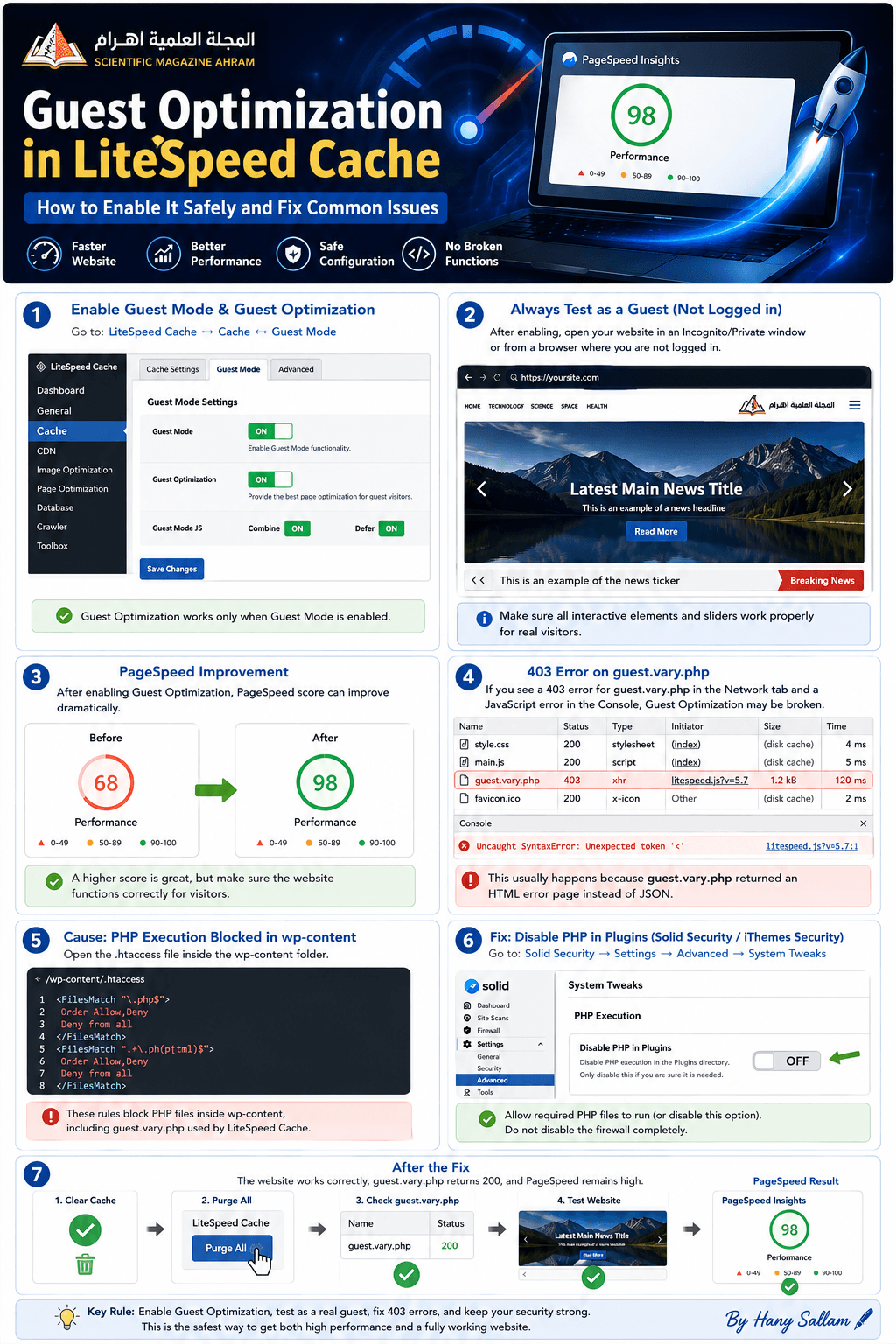
Guest Optimization can be an excellent way to improve WordPress performance and achieve a much higher PageSpeed score.
However, performance optimization should never be measured by the score alone.
If a slider, news ticker, menu, or another JavaScript feature stops working after enabling Guest Optimization, test the website as a real visitor and inspect the browser errors before changing the optimization settings.
A 403 error involving guest.vary.php can point to a security rule blocking PHP execution inside wp-content. In such cases, the correct solution is to adjust the specific security restriction rather than disabling Guest Optimization or the entire website firewall.
The key rule is simple:
Optimize for performance, but always test the website from the visitor’s point of view.
By Hany Sallam

آخر فيديو
استعرض معنا في هذا الفيديو الإبداع الفني الخالص من خلال عرض أعمال